Designing a Colour Palette Management App for Creatives
Dates
March - April 2026
Description:
Designs and prototype for core flows of a colour palette management app for mobile. Initially a 1-day design challenge, revisited as a high fidelity project.
Role:
Solo project, including research, UI design, prototyping and user testing.
Designing a Colour Palette Management App for Creatives
Dates
March - April 2026
Description:
Designs and prototype for core flows of a colour palette management app for mobile. Initially a 1-day design challenge, revisited as a high fidelity project.
Role:
Solo project, including research, UI design, prototyping and user testing.
Designing a Colour Palette Management App for Creatives
Dates
March - April 2026
Description:
Designs and prototype for core flows of a colour palette management app for mobile. Initially a 1-day design challenge, revisited as a high fidelity project.
Role:
Solo project, including research, UI design, prototyping and user testing.
Project overview
Context
This project started as a daily design challenge to design a colour picker. I initially timeboxed my solution to a day, including research, wireframing and Figma designs, resulting in first drafts of UI designs for two screens of a colour picker app.
Revisiting the project, I felt there was significant room for improvement, so decided to expand on my initial prototype to build a more comprehensive, research-supported journey. Market research and user testing sharpened the product's focus, revealing a clear gap between what existing tools offer and how creatives actually work with colour, and identifying usability issues with the first draft of my UI. This case study describes my journey to build and refine my prototype.
Problem
Creatives need a dedicated, intuitive space to curate and refine colour palettes. Current workflows are high-friction and fragmented. Creatives need a centralised tool offering both a streamlined, user-friendly interface and capabilities like high-precision colour editing, automated palette extraction, and a way to easily share their palettes with other apps in their workflow.
Solution
I created designs and Figma prototypes for a specialised mobile app for creating, customising and exporting colour palettes, focusing on minimising cognitive load and enabling creativity.
Key activities included:
Competitive analysis of existing apps for colour picking and colour palette creation
Mapping key user journeys and personas
User testing, prompting significant changes to the user experience
Designing wireframes for key screens
Building Figma prototypes for key user journeys, such as creating palettes, editing palettes, and deleting palettes
Key Skills
Information architecture
Competitive analysis
Usability testing
Accessibility
Prototyping
UI Design
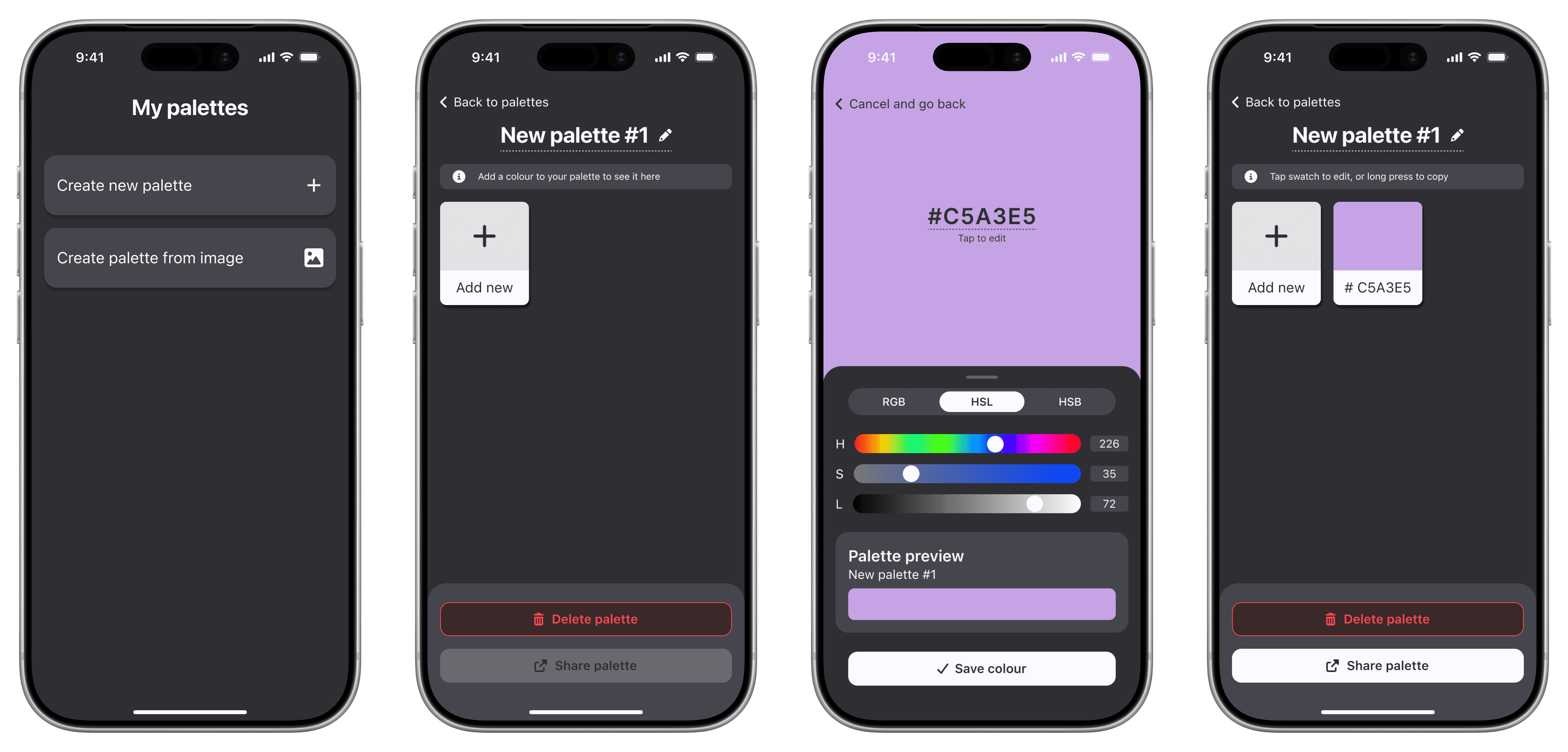
Flow for creating a new colour palette
Project overview
Context
This project started as a daily design challenge to design a colour picker. I initially timeboxed my solution to a day, including research, wireframing and Figma designs, resulting in first drafts of UI designs for two screens of a colour picker app.
Revisiting the project, I felt there was significant room for improvement, so decided to expand on my initial prototype to build a more comprehensive, research-supported journey. Market research and user testing sharpened the product's focus, revealing a clear gap between what existing tools offer and how creatives actually work with colour, and identifying usability issues with the first draft of my UI. This case study describes my journey to build and refine my prototype.
Problem
Creatives need a dedicated, intuitive space to curate and refine colour palettes. Current workflows are high-friction and fragmented. Creatives need a centralised tool offering both a streamlined, user-friendly interface and capabilities like high-precision colour editing, automated palette extraction, and a way to easily share their palettes with other apps in their workflow.
Solution
I created designs and Figma prototypes for a specialised mobile app for creating, customising and exporting colour palettes, focusing on minimising cognitive load and enabling creativity.
Key activities included:
Competitive analysis of existing apps for colour picking and colour palette creation
Mapping key user journeys and personas
User testing, prompting significant changes to the user experience
Designing wireframes for key screens
Building Figma prototypes for key user journeys, such as creating palettes, editing palettes, and deleting palettes
Key Skills
Information architecture
Competitive analysis
Usability testing
Accessibility
Prototyping
UI Design
Flow for creating a new colour palette
Project overview
Context
This project started as a daily design challenge to design a colour picker. I initially timeboxed my solution to a day, including research, wireframing and Figma designs, resulting in first drafts of UI designs for two screens of a colour picker app.
Revisiting the project, I felt there was significant room for improvement, so decided to expand on my initial prototype to build a more comprehensive, research-supported journey. Market research and user testing sharpened the product's focus, revealing a clear gap between what existing tools offer and how creatives actually work with colour, and identifying usability issues with the first draft of my UI. This case study describes my journey to build and refine my prototype.
Problem
Creatives need a dedicated, intuitive space to curate and refine colour palettes. Current workflows are high-friction and fragmented. Creatives need a centralised tool offering both a streamlined, user-friendly interface and capabilities like high-precision colour editing, automated palette extraction, and a way to easily share their palettes with other apps in their workflow.
Solution
I created designs and Figma prototypes for a specialised mobile app for creating, customising and exporting colour palettes, focusing on minimising cognitive load and enabling creativity.
Key activities included:
Competitive analysis of existing apps for colour picking and colour palette creation
Mapping key user journeys and personas
User testing, prompting significant changes to the user experience
Designing wireframes for key screens
Building Figma prototypes for key user journeys, such as creating palettes, editing palettes, and deleting palettes
Key Skills
Information architecture
Competitive analysis
Usability testing
Accessibility
Prototyping
UI Design
Flow for creating a new colour palette
Understanding the Problem
User personas
I identified key user personas of traditional artists, digital illustrators, and designers, and mapped their workflows to goals and pain points. I identified the common themes of:
Colours are usually treated as part of a collection (a mood board, a brand identity, or theme) as they are rarely used or chosen in isolation
Creatives want precision in choosing colours for their palettes, and may want to extract colours from images
Creatives working digitally want to export their palettes for use in other apps, reducing manual work
Auditing the current landscape
Across the existing app landscape, I identified several recurring pain points across colour picker and colour palette apps:
Icon-heavy UIs and cluttered interfaces with a steep learning curve
Convoluted palette editing: adding or swapping colours often felt cumbersome
Over-reliance on generated colour palettes, with no freedom for users to create their own
Insufficient precision for colour value input on mobile
Unclear navigation and disconnected information architecture
Creators often rely on workarounds, using unspecialised tools or combinations of tools

Competitive analysis revealed cluttered UIs, unclear actions, and limited palette management flows
User testing
I conducted moderated usability testing of early Figma prototypes with a small group of users to understand how they navigated the UI. I presenting them with simple tasks, asking how they understood what was presented to them, how they would interact with the UI, and how they would expect the app to respond. This helped me to understand how users instinctively interacted with the app and where my initial designs needed improvement.
Users found palette editing intuitive, but bypassed tab navigation
During testing, users didn't naturally interact with the tab navigation, and when they did, they expressed uncertainty in how to proceed from choosing a colour to building a palette. Meanwhile, when starting from the palettes screen, users were able to quickly progress and understood how to add or edit colours. One user commented that it made more sense to them to start from a palette and add colours, since in their normal workflows, all colours belong to a collection, rather than as standalone colours, so they would only ever begin from the palette screen.
Understanding that users could see the colour palettes as a central concept with individual colours as 'children' of these helped me to create a clearer user journey. I removed the tab navigation since it overcomplicated the user flows, instead creating a single, clear direction for users: creating a palette, then adding colours.
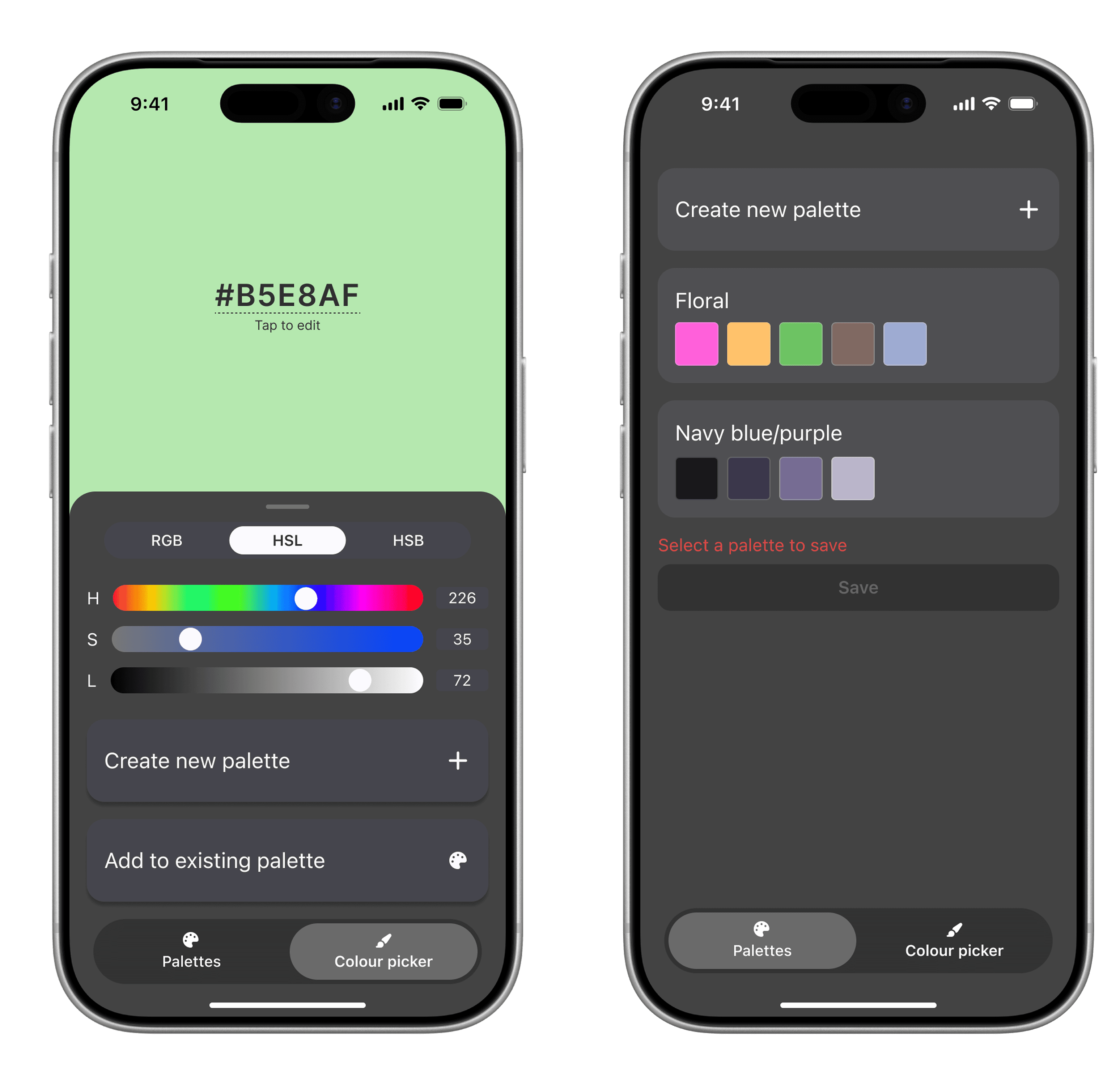
Before usability testing: users could begin from a colour and then build a palette
After usability testing: users start from a palette, building upon the palette as a base
Icon-only buttons caused confusion, and primary CTAs weren't distinct enough
Users were hesitant to use buttons that were described by icons alone. One user said they felt overwhelmed when seeing several buttons of equal importance, and didn't know how to proceed. It took users time to read and understand their options.
Given my initial research findings that colour picker app UIs felt cluttered and unclear, this made me realise that in my eagerness to add as many features as possible, I had fallen into the same pitfalls my market researched warned me against. This prompted me to completely redesign buttons and icons, removing any buttons that relied solely on iconography to communicate meaning. I created clear primary CTAs, ensuring strong visual hierarchy to separate primary and secondary actions.
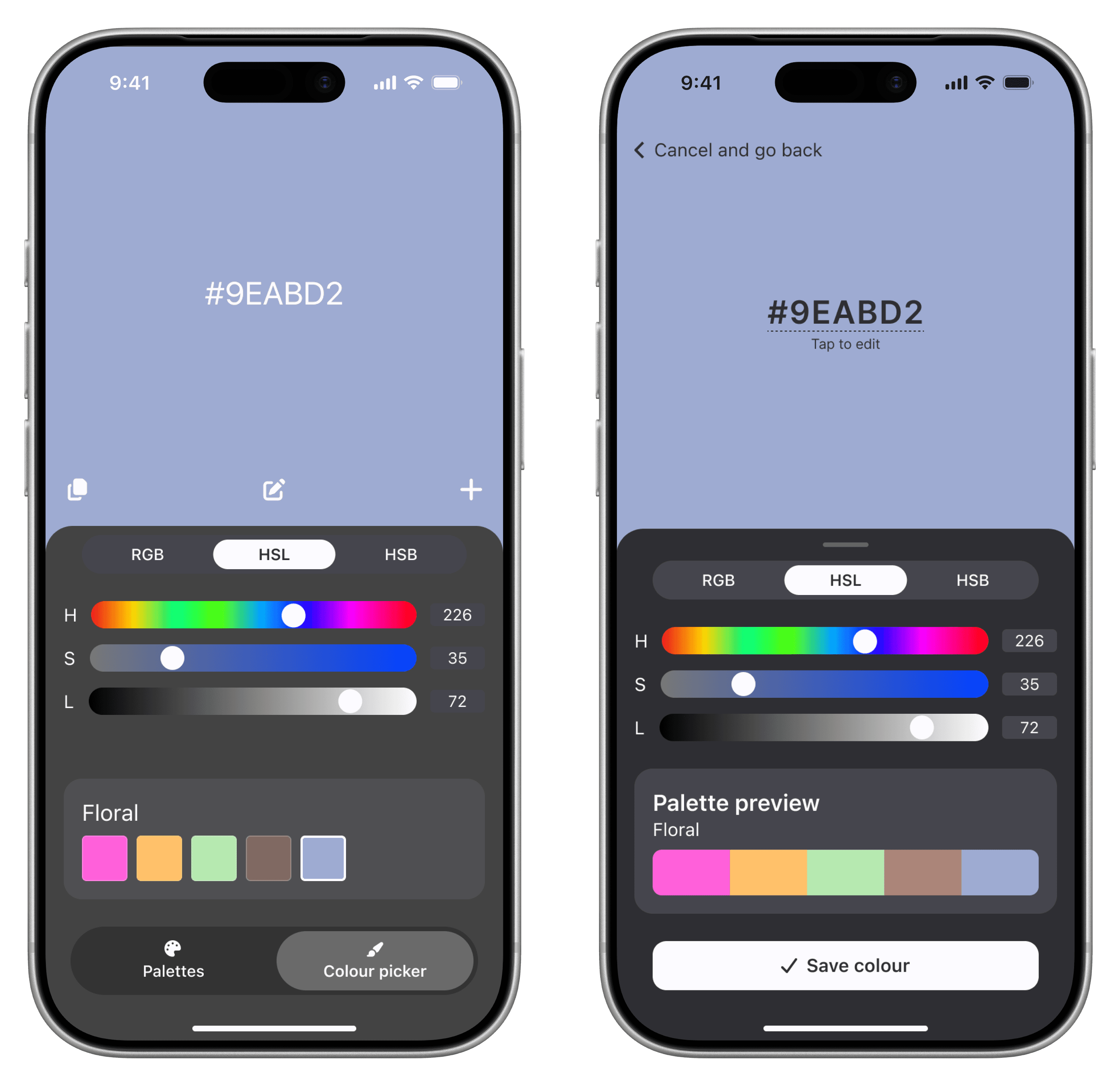
Before usability testing (left) and after (right): reducing reliance on icons
Palette editing felt cluttered
The screen for editing palettes felt crowded. One user said they "hate how close the bin icon is to the edit icon", and said it made them "scared" that they would make a mistake. Another didn't see the value in clicking to expand the palette for editing and didn't understand what difference it made or what options it gave them, and that it felt too similar to the collapsed view and felt "limited".
In response to this, I brought the options for editing a palette into their own screen, reducing crowding and improving clarity, while ensuring users still had access to options for editing their palettes. I also added higher contrast to destructive actions, and built flows for deleting colours and palettes that asked for explicit confirmation before deleting.
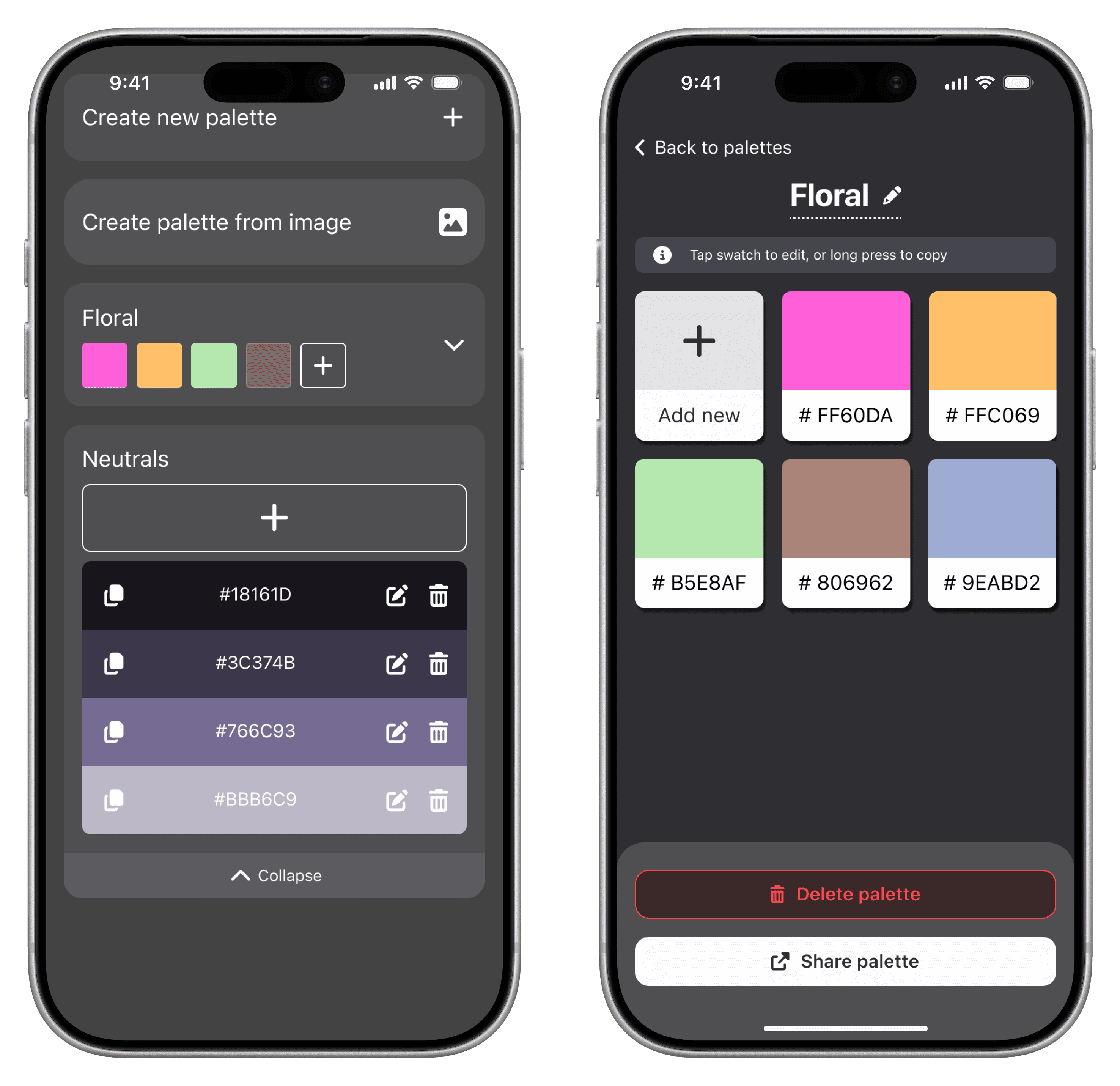
Before usability testing (left) and after (right): editing a palette
Understanding the Problem
User personas
I identified key user personas of traditional artists, digital illustrators, and designers, and mapped their workflows to goals and pain points. I identified the common themes of:
Colours are usually treated as part of a collection (a mood board, a brand identity, or theme) as they are rarely used or chosen in isolation
Creatives want precision in choosing colours for their palettes, and may want to extract colours from images
Creatives working digitally want to export their palettes for use in other apps, reducing manual work
Auditing the current landscape
Across the existing app landscape, I identified several recurring pain points across colour picker and colour palette apps:
Icon-heavy UIs and cluttered interfaces with a steep learning curve
Convoluted palette editing: adding or swapping colours often felt cumbersome
Over-reliance on generated colour palettes, with no freedom for users to create their own
Insufficient precision for colour value input on mobile
Unclear navigation and disconnected information architecture
Creators often rely on workarounds, using unspecialised tools or combinations of tools
Competitive analysis revealed cluttered UIs, unclear actions, and limited palette management flows
User testing
I conducted moderated usability testing of early Figma prototypes with a small group of users to understand how they navigated the UI. I presenting them with simple tasks, asking how they understood what was presented to them, how they would interact with the UI, and how they would expect the app to respond. This helped me to understand how users instinctively interacted with the app and where my initial designs needed improvement.
Users found palette editing intuitive, but bypassed tab navigation
During testing, users didn't naturally interact with the tab navigation, and when they did, they expressed uncertainty in how to proceed from choosing a colour to building a palette. Meanwhile, when starting from the palettes screen, users were able to quickly progress and understood how to add or edit colours. One user commented that it made more sense to them to start from a palette and add colours, since in their normal workflows, all colours belong to a collection, rather than as standalone colours, so they would only ever begin from the palette screen.
Understanding that users could see the colour palettes as a central concept with individual colours as 'children' of these helped me to create a clearer user journey. I removed the tab navigation since it overcomplicated the user flows, instead creating a single, clear direction for users: creating a palette, then adding colours.
Before usability testing: users could begin from a colour and then build a palette
After usability testing: users start from a palette, building upon the palette as a base
Icon-only buttons caused confusion, and primary CTAs weren't distinct enough
Users were hesitant to use buttons that were described by icons alone. One user said they felt overwhelmed when seeing several buttons of equal importance, and didn't know how to proceed. It took users time to read and understand their options.
Given my initial research findings that colour picker app UIs felt cluttered and unclear, this made me realise that in my eagerness to add as many features as possible, I had fallen into the same pitfalls my market researched warned me against. This prompted me to completely redesign buttons and icons, removing any buttons that relied solely on iconography to communicate meaning. I created clear primary CTAs, ensuring strong visual hierarchy to separate primary and secondary actions.
Before usability testing (left) and after (right): reducing reliance on icons
Palette editing felt cluttered
The screen for editing palettes felt crowded. One user said they "hate how close the bin icon is to the edit icon", and said it made them "scared" that they would make a mistake. Another didn't see the value in clicking to expand the palette for editing and didn't understand what difference it made or what options it gave them, and that it felt too similar to the collapsed view and felt "limited".
In response to this, I brought the options for editing a palette into their own screen, reducing crowding and improving clarity, while ensuring users still had access to options for editing their palettes. I also added higher contrast to destructive actions, and built flows for deleting colours and palettes that asked for explicit confirmation before deleting.
Before usability testing (left) and after (right): editing a palette
Understanding the Problem
User personas
I identified key user personas of traditional artists, digital illustrators, and designers, and mapped their workflows to goals and pain points. I identified the common themes of:
Colours are usually treated as part of a collection (a mood board, a brand identity, or theme) as they are rarely used or chosen in isolation
Creatives want precision in choosing colours for their palettes, and may want to extract colours from images
Creatives working digitally want to export their palettes for use in other apps, reducing manual work
Auditing the current landscape
Across the existing app landscape, I identified several recurring pain points across colour picker and colour palette apps:
Icon-heavy UIs and cluttered interfaces with a steep learning curve
Convoluted palette editing: adding or swapping colours often felt cumbersome
Over-reliance on generated colour palettes, with no freedom for users to create their own
Insufficient precision for colour value input on mobile
Unclear navigation and disconnected information architecture
Creators often rely on workarounds, using unspecialised tools or combinations of tools
Competitive analysis revealed cluttered UIs, unclear actions, and limited palette management flows
User testing
I conducted moderated usability testing of early Figma prototypes with a small group of users to understand how they navigated the UI. I presenting them with simple tasks, asking how they understood what was presented to them, how they would interact with the UI, and how they would expect the app to respond. This helped me to understand how users instinctively interacted with the app and where my initial designs needed improvement.
Users found palette editing intuitive, but bypassed tab navigation
During testing, users didn't naturally interact with the tab navigation, and when they did, they expressed uncertainty in how to proceed from choosing a colour to building a palette. Meanwhile, when starting from the palettes screen, users were able to quickly progress and understood how to add or edit colours. One user commented that it made more sense to them to start from a palette and add colours, since in their normal workflows, all colours belong to a collection, rather than as standalone colours, so they would only ever begin from the palette screen.
Understanding that users could see the colour palettes as a central concept with individual colours as 'children' of these helped me to create a clearer user journey. I removed the tab navigation since it overcomplicated the user flows, instead creating a single, clear direction for users: creating a palette, then adding colours.
Before usability testing: users could begin from a colour and then build a palette
Before usability testing: users could begin from a colour and then build a palette
Icon-only buttons caused confusion, and primary CTAs weren't distinct enough
Users were hesitant to use buttons that were described by icons alone. One user said they felt overwhelmed when seeing several buttons of equal importance, and didn't know how to proceed. It took users time to read and understand their options.
Given my initial research findings that colour picker app UIs felt cluttered and unclear, this made me realise that in my eagerness to add as many features as possible, I had fallen into the same pitfalls my market researched warned me against. This prompted me to completely redesign buttons and icons, removing any buttons that relied solely on iconography to communicate meaning. I created clear primary CTAs, ensuring strong visual hierarchy to separate primary and secondary actions.
Before usability testing (left) and after (right): reducing reliance on icons
Palette editing felt cluttered
The screen for editing palettes felt crowded. One user said they "hate how close the bin icon is to the edit icon", and said it made them "scared" that they would make a mistake. Another didn't see the value in clicking to expand the palette for editing and didn't understand what difference it made or what options it gave them, and that it felt too similar to the collapsed view and felt "limited".
In response to this, I brought the options for editing a palette into their own screen, reducing crowding and improving clarity, while ensuring users still had access to options for editing their palettes. I also added higher contrast to destructive actions, and built flows for deleting colours and palettes that asked for explicit confirmation before deleting.
Before usability testing (left) and after (right): editing a palette
User journeys for palette management
After gaining a clearer understanding of user's workflows and mental models for colour palettes through user testing, I mapped out key user journeys, and created simple directional flows that felt intuitive and prioritised the most important interactions (for example, creating a new palette, adding a colour to a palette, or editing a colour). While the initial prototype had two main screens, my second prototype added a dedicated screen for managing a palette and viewing it in more detail, resulting in a cleaner interface and stronger visual hierarchy. This shaped a clear three-level hierarchy:
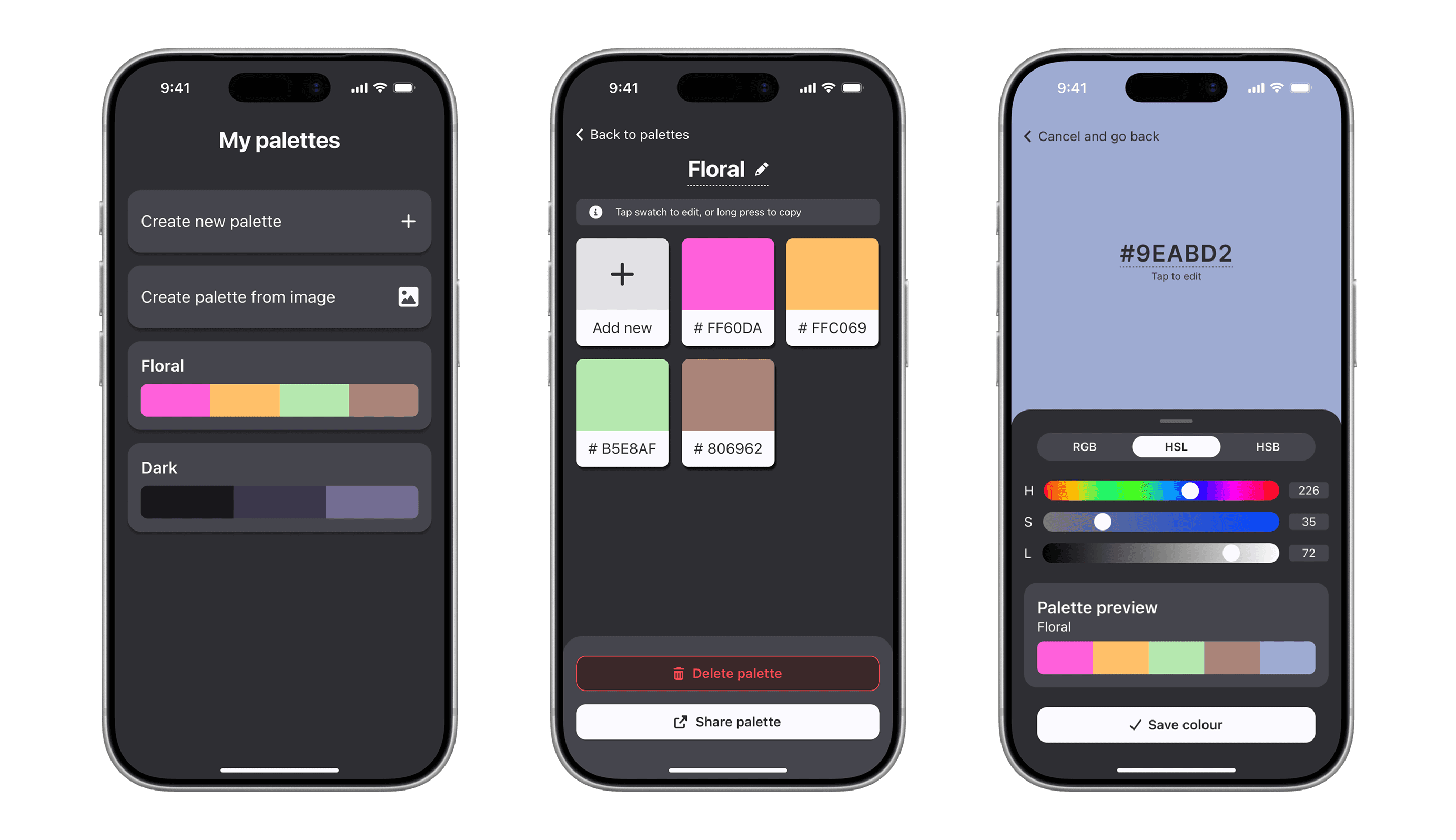
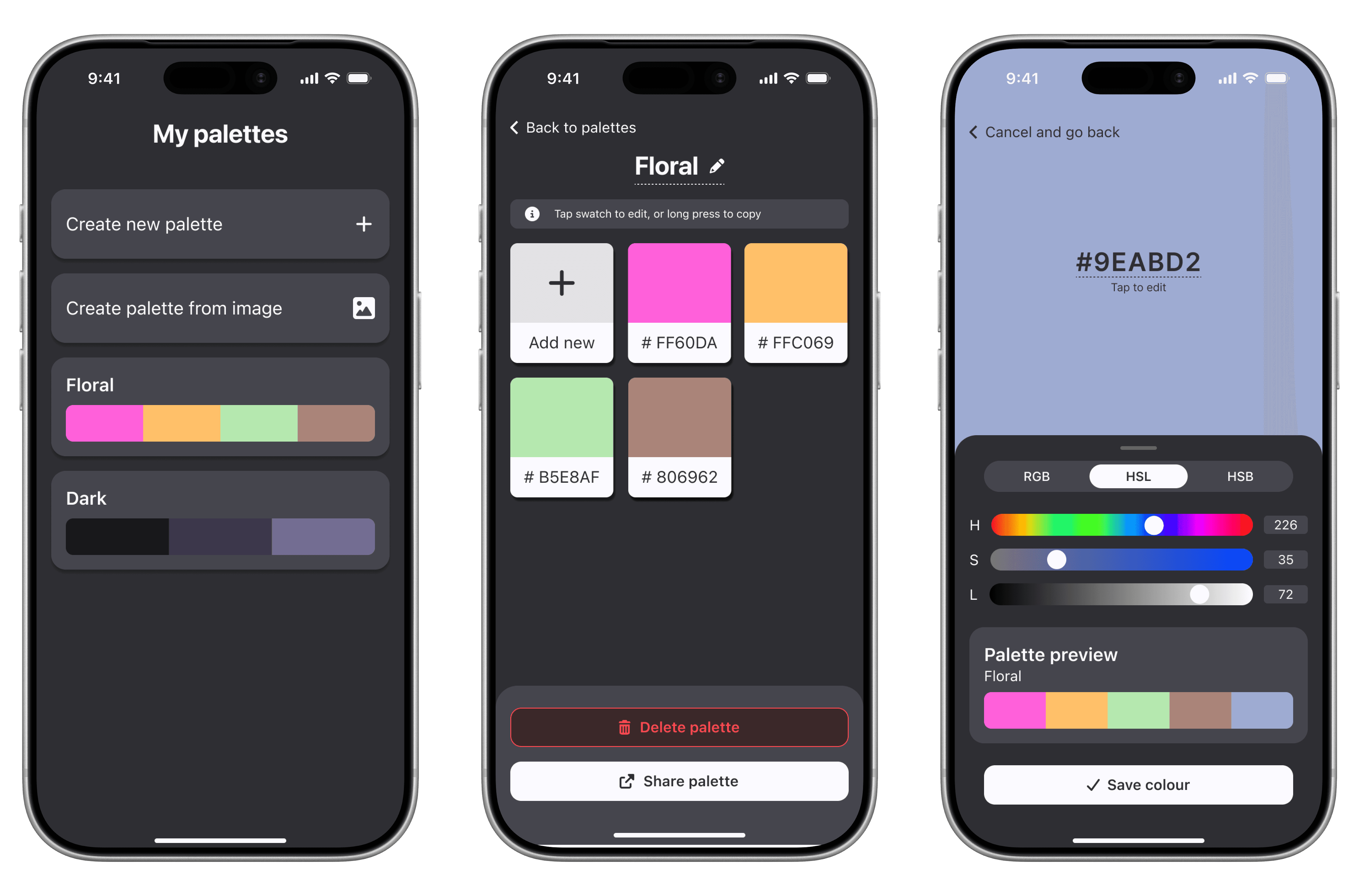
Palettes screen: browse existing palettes; create new palettes
Palette screen: rename, delete, or share current palette; enter flows to add or edit colours
Colour picker screen: select or update current colour; delete current colour
When creating flows for destructive actions, such as deleting palettes or colours, I used confirmation modals and clear language to reduce user error, with small toasts to confirm successful actions, leaving no room for ambiguity.
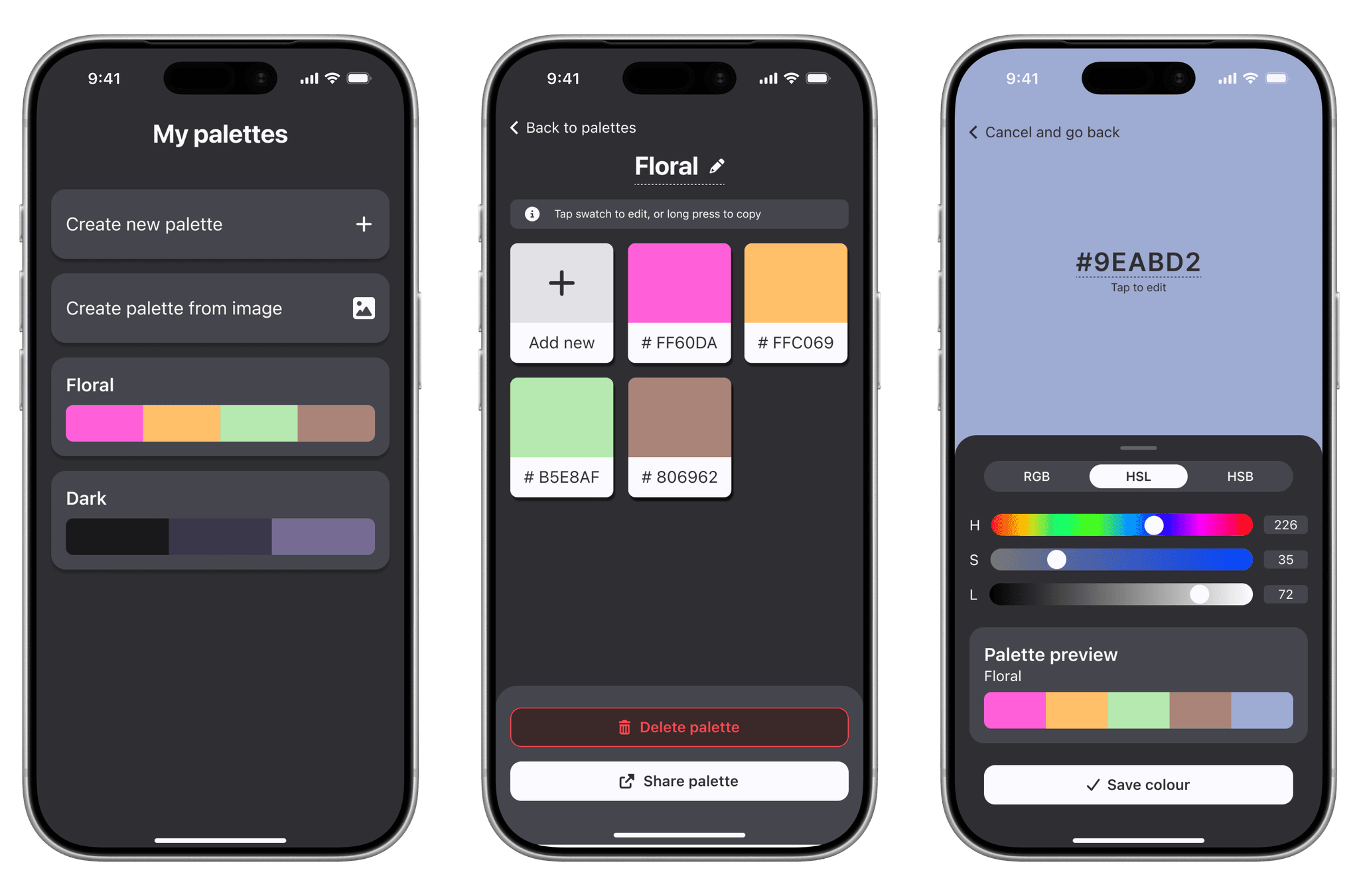
Overview of three main screens
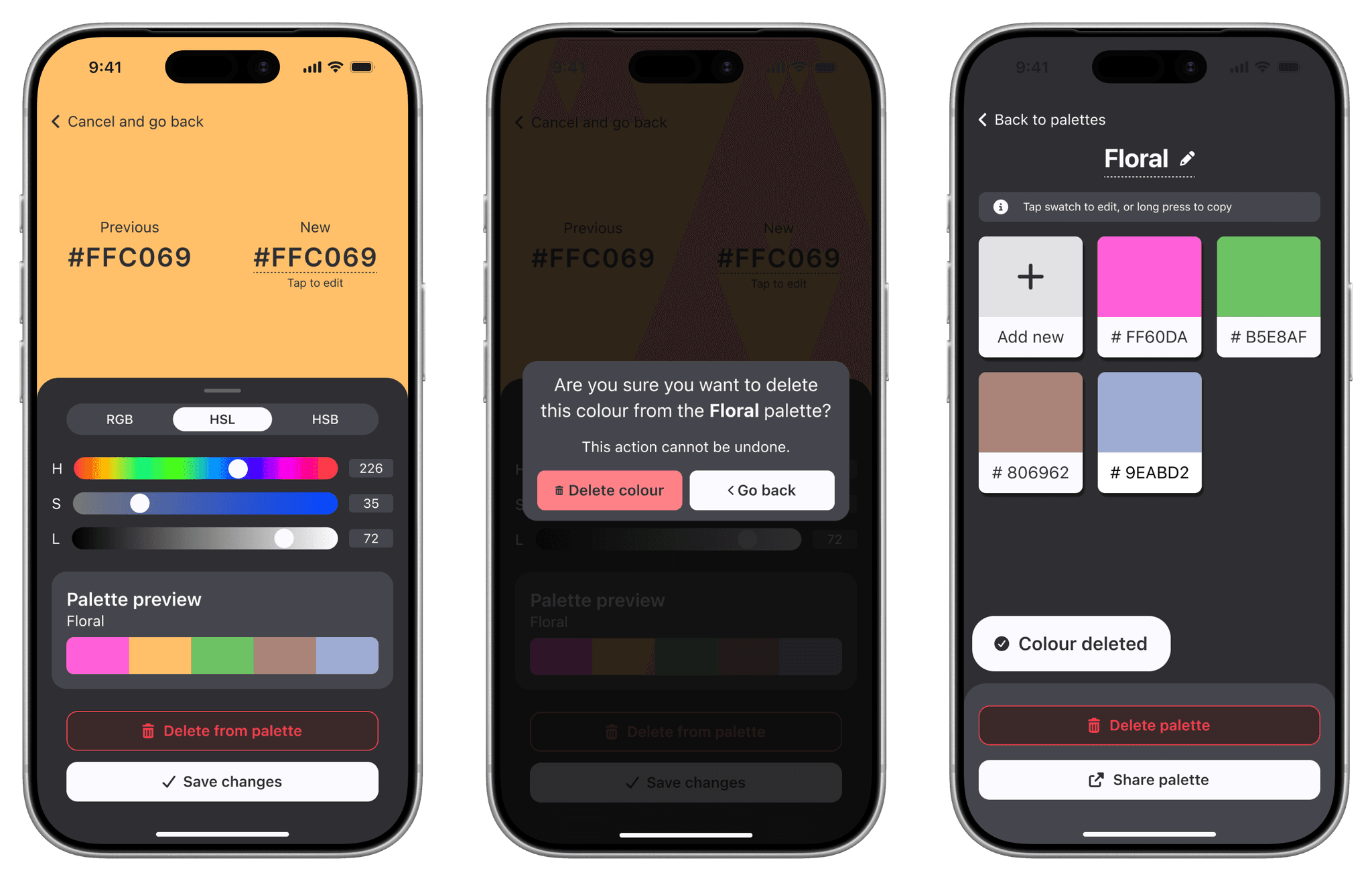
Flow for deleting a colour from a palette
User journeys for palette management
After gaining a clearer understanding of user's workflows and mental models for colour palettes through user testing, I mapped out key user journeys, and created simple directional flows that felt intuitive and prioritised the most important interactions (for example, creating a new palette, adding a colour to a palette, or editing a colour). While the initial prototype had two main screens, my second prototype added a dedicated screen for managing a palette and viewing it in more detail, resulting in a cleaner interface and stronger visual hierarchy. This shaped a clear three-level hierarchy:
Palettes screen: browse existing palettes; create new palettes
Palette screen: rename, delete, or share current palette; enter flows to add or edit colours
Colour picker screen: select or update current colour; delete current colour
When creating flows for destructive actions, such as deleting palettes or colours, I used confirmation modals and clear language to reduce user error, with small toasts to confirm successful actions, leaving no room for ambiguity.
Overview of three main screens
Flow for deleting a colour from a palette
User journeys for palette management
After gaining a clearer understanding of user's workflows and mental models for colour palettes through user testing, I mapped out key user journeys, and created simple directional flows that felt intuitive and prioritised the most important interactions (for example, creating a new palette, adding a colour to a palette, or editing a colour). While the initial prototype had two main screens, my second prototype added a dedicated screen for managing a palette and viewing it in more detail, resulting in a cleaner interface and stronger visual hierarchy. This shaped a clear three-level hierarchy:
Palettes screen: browse existing palettes; create new palettes
Palette screen: rename, delete, or share current palette; enter flows to add or edit colours
Colour picker screen: select or update current colour; delete current colour
When creating flows for destructive actions, such as deleting palettes or colours, I used confirmation modals and clear language to reduce user error, with small toasts to confirm successful actions, leaving no room for ambiguity.
Overview of three main screens
Flow for deleting a colour from a palette
Designing the user interface
My process for user interface design started with loose sketches, followed by wireframes to explore hierarchy, shape, and layout, finally refining these using a lightweight design system of colours, dimensions, and a small set of modular components.
Designing the colour editor
The colour editing screen is the most feature-rich screen, offering users fine-grained control over colours. I used existing conventions to make the process intuitive and reduce the learning curve. After exploring different inputs for editing colours, I chose to use horizontal sliders since these allow more precise numerical control over values than colour wheels, for example, easily allowing a user to shift brightness without accidentally editing saturation. Where more precise control is needed, I included the option of editing values directly via editable text fields.
Colour and shape
To keep the user interface secondary to the user's colour choices, I chose a muted colour scheme and a simple interface, giving space to the colour palettes themselves and key CTAs, minimising distractions and overwhelm. Where labels or buttons appear over colour previews, the designs specify adaptive text colours for optimal contrast (light text on dark colours, dark text on light) to be built into the frontend to ensure legibility of text against any chosen colour.
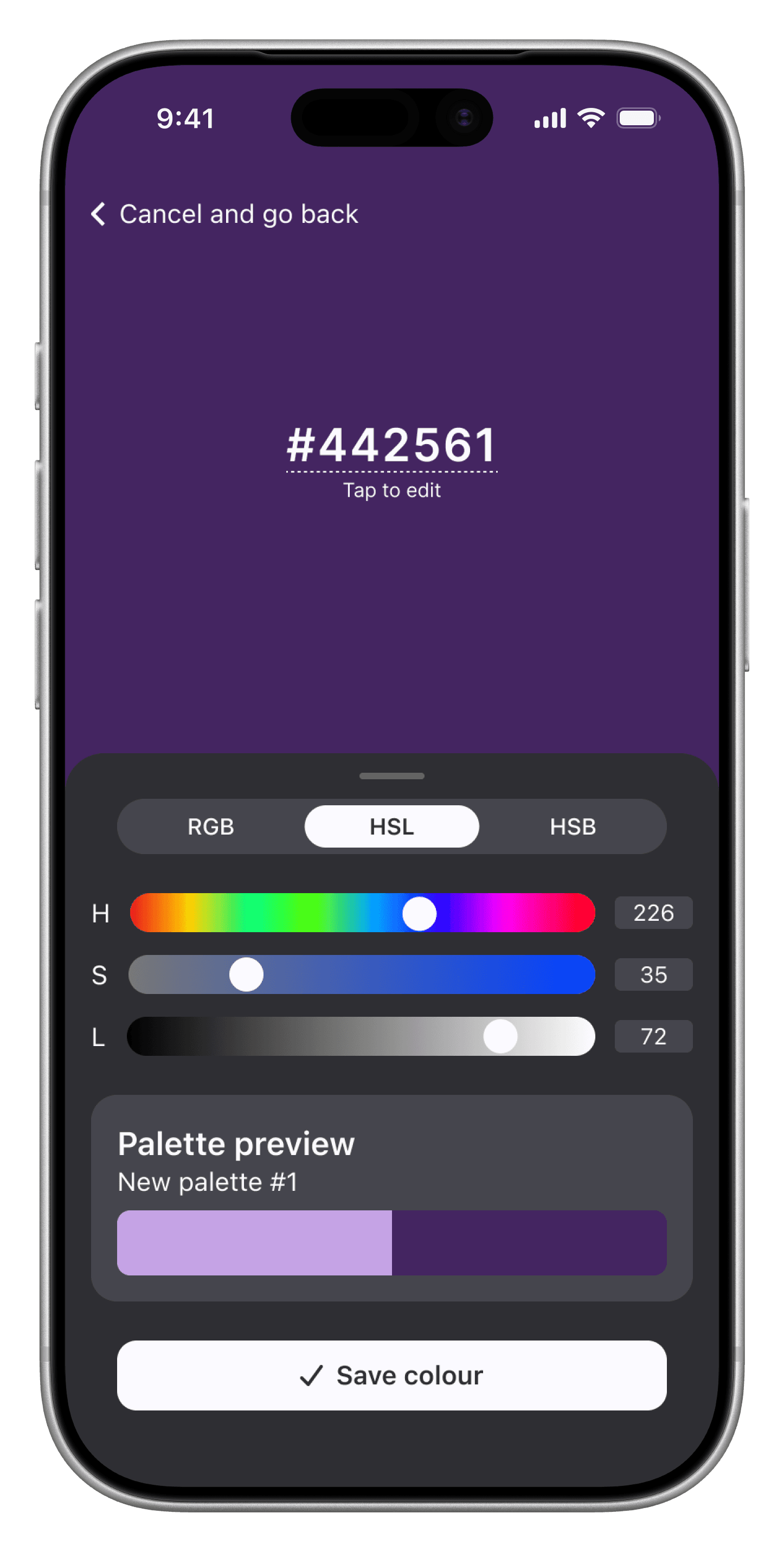
Screen for editing a colour palette, using adaptive text colours
Designing the user interface
My process for user interface design started with loose sketches, followed by wireframes to explore hierarchy, shape, and layout, finally refining these using a lightweight design system of colours, dimensions, and a small set of modular components.
Designing the colour editor
The colour editing screen is the most feature-rich screen, offering users fine-grained control over colours. I used existing conventions to make the process intuitive and reduce the learning curve. After exploring different inputs for editing colours, I chose to use horizontal sliders since these allow more precise numerical control over values than colour wheels, for example, easily allowing a user to shift brightness without accidentally editing saturation. Where more precise control is needed, I included the option of editing values directly via editable text fields.
Colour and shape
To keep the user interface secondary to the user's colour choices, I chose a muted colour scheme and a simple interface, giving space to the colour palettes themselves and key CTAs, minimising distractions and overwhelm. Where labels or buttons appear over colour previews, the designs specify adaptive text colours for optimal contrast (light text on dark colours, dark text on light) to be built into the frontend to ensure legibility of text against any chosen colour.
Screen for editing a colour palette, using adaptive text colours
Designing the user interface
My process for user interface design started with loose sketches, followed by wireframes to explore hierarchy, shape, and layout, finally refining these using a lightweight design system of colours, dimensions, and a small set of modular components.
Designing the colour editor
The colour editing screen is the most feature-rich screen, offering users fine-grained control over colours. I used existing conventions to make the process intuitive and reduce the learning curve. After exploring different inputs for editing colours, I chose to use horizontal sliders since these allow more precise numerical control over values than colour wheels, for example, easily allowing a user to shift brightness without accidentally editing saturation. Where more precise control is needed, I included the option of editing values directly via editable text fields.
Colour and shape
To keep the user interface secondary to the user's colour choices, I chose a muted colour scheme and a simple interface, giving space to the colour palettes themselves and key CTAs, minimising distractions and overwhelm. Where labels or buttons appear over colour previews, the designs specify adaptive text colours for optimal contrast (light text on dark colours, dark text on light) to be built into the frontend to ensure legibility of text against any chosen colour.
Screen for editing a colour palette, using adaptive text colours
Reflections and next steps
I really enjoyed this project so far, but think there is a lot more to explore if I want to bring this app to life. For me, a valuable part of the project was seeing how my perspective shifted when returning to the project after a break, and how my growing research and design skills made a difference to the user experience.
What worked well
User testing significantly reframed how I approached the problem, validating some UI decisions while prompting a fundamental rethink of the app's purpose and structure. This also led me to fully explore the core use cases for the app, mapping out detailed flows based on market and user research, which was key to guiding the user experience. Starting the process from a small subset of key functionalities was also an effective great way to break down the project, ensuring designs could be iteratively built based on research and testing.
What I would change
Since this started as a daily design challenge on a limited timeframe, I built my first high-fidelity designs before conducting user testing, so substantial rework was needed when the user testing caused a shift in direction. In future, I'd test with lower-fidelity wireframes to validate user journeys or more complex interactions in isolation before investing heavily in visual detail.
Next steps
For the project’s next steps, I will prioritise the following:
Building out the shallow flows: further design work on some of the screens not yet explored; in particular the flow for generating a palette from an image, and defining formats palette sharing, both key flows which require additional research.
Usability testing and code prototyping: further testing of the UX and UI with Figma prototypes should be conducted, and code prototypes should be used to refine interactions, sensitivity, and motion design.
Palette generation: adding AI-driven palette generation would elevate the product from a simple utility to a source of creative inspiration.
Theming: further exploring a full light mode UI, and designing how users would toggle between themes to preview colours against different backgrounds.
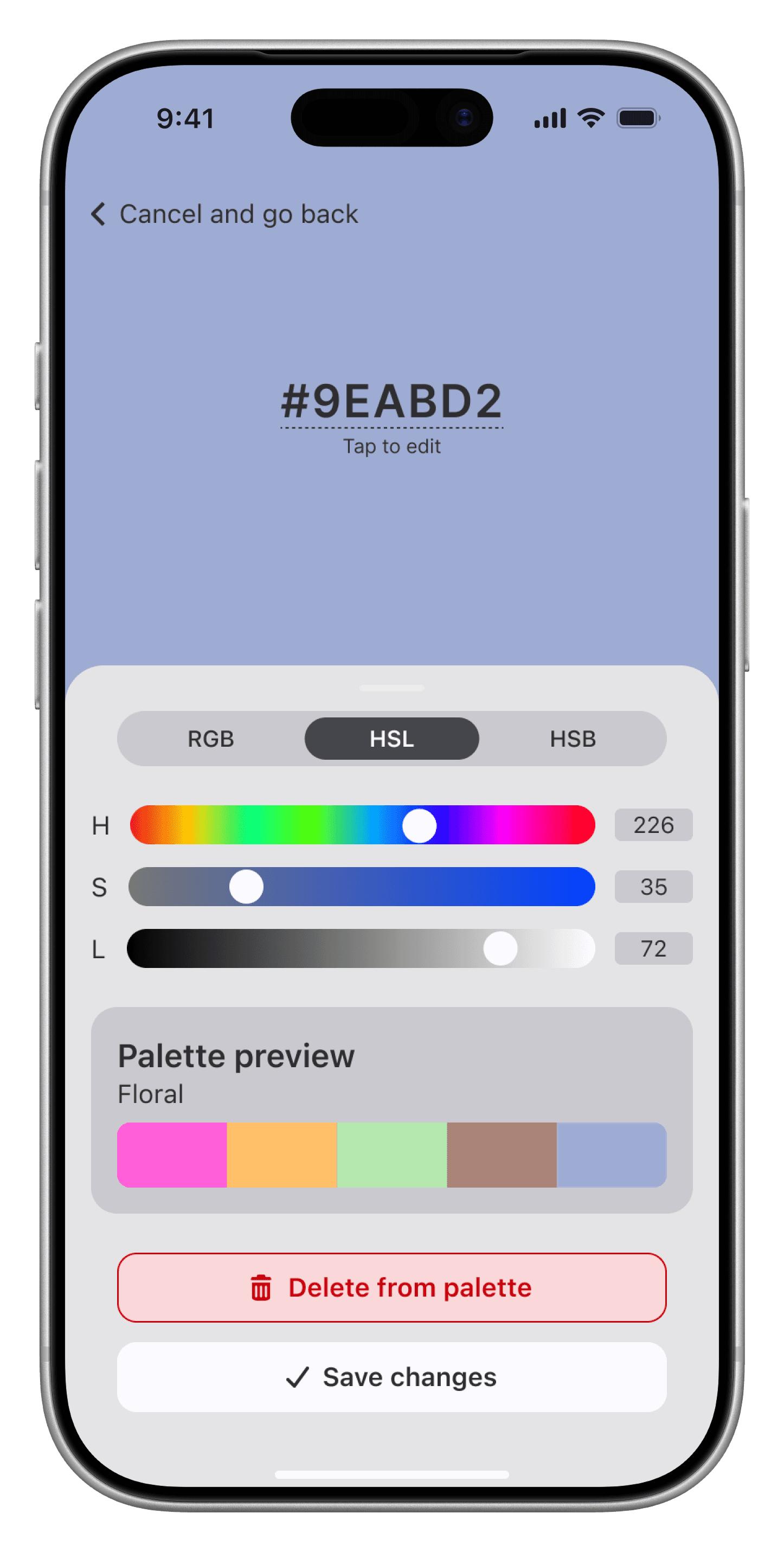
Initial exploration for light mode theme
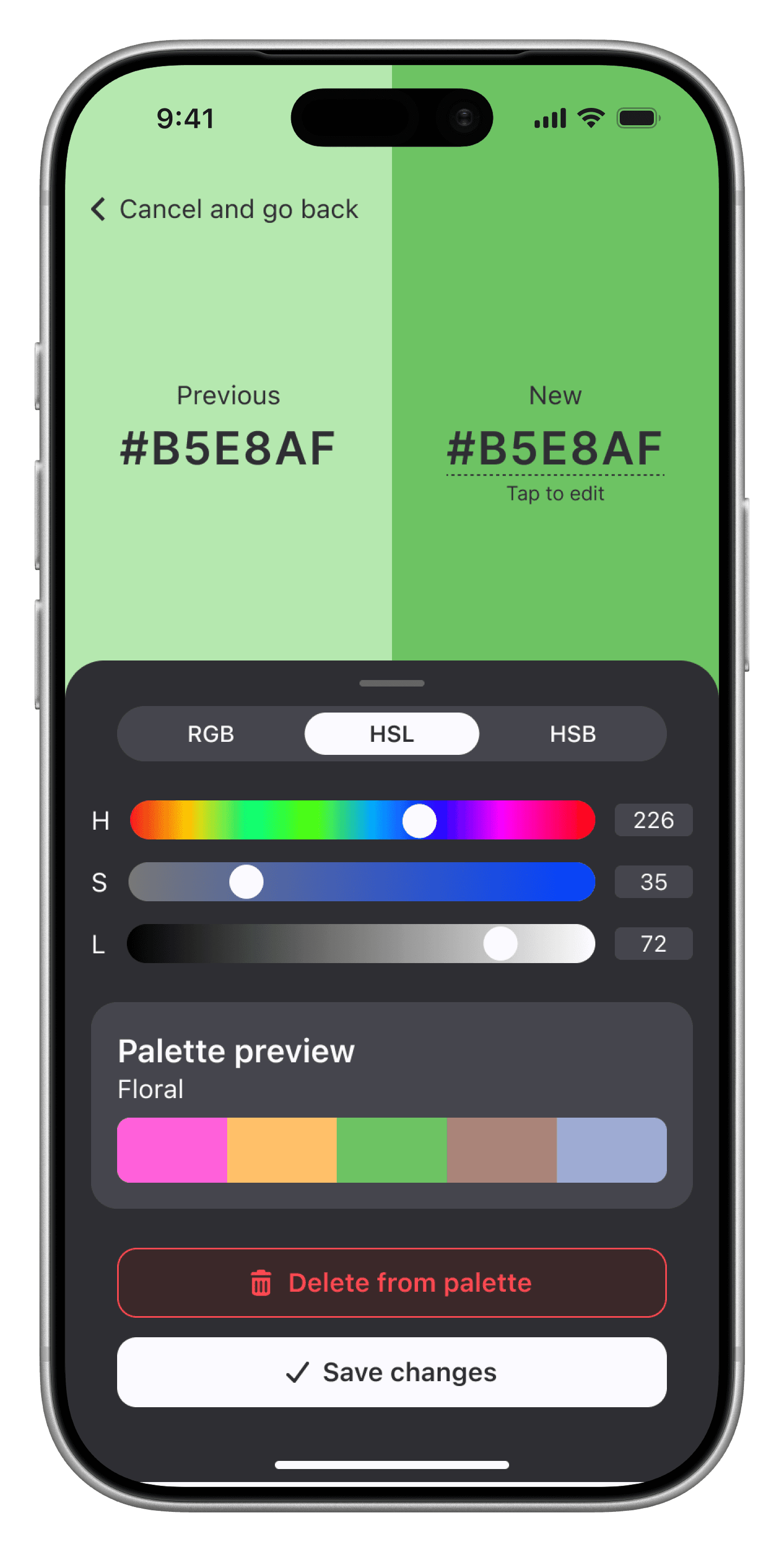
UI for editing a colour in an existing palette needs further testing
Reflections and next steps
I really enjoyed this project so far, but think there is a lot more to explore if I want to bring this app to life. For me, a valuable part of the project was seeing how my perspective shifted when returning to the project after a break, and how my growing research and design skills made a difference to the user experience.
What worked well
User testing significantly reframed how I approached the problem, validating some UI decisions while prompting a fundamental rethink of the app's purpose and structure. This also led me to fully explore the core use cases for the app, mapping out detailed flows based on market and user research, which was key to guiding the user experience. Starting the process from a small subset of key functionalities was also an effective great way to break down the project, ensuring designs could be iteratively built based on research and testing.
What I would change
Since this started as a daily design challenge on a limited timeframe, I built my first high-fidelity designs before conducting user testing, so substantial rework was needed when the user testing caused a shift in direction. In future, I'd test with lower-fidelity wireframes to validate user journeys or more complex interactions in isolation before investing heavily in visual detail.
Next steps
For the project’s next steps, I will prioritise the following:
Building out the shallow flows: further design work on some of the screens not yet explored; in particular the flow for generating a palette from an image, and defining formats palette sharing, both key flows which require additional research.
Usability testing and code prototyping: further testing of the UX and UI with Figma prototypes should be conducted, and code prototypes should be used to refine interactions, sensitivity, and motion design.
Palette generation: adding AI-driven palette generation would elevate the product from a simple utility to a source of creative inspiration.
Theming: further exploring a full light mode UI, and designing how users would toggle between themes to preview colours against different backgrounds.
Initial exploration for light mode theme
UI for editing a colour in an existing palette needs further testing
Reflections and next steps
I really enjoyed this project so far, but think there is a lot more to explore if I want to bring this app to life. For me, a valuable part of the project was seeing how my perspective shifted when returning to the project after a break, and how my growing research and design skills made a difference to the user experience.
What worked well
User testing significantly reframed how I approached the problem, validating some UI decisions while prompting a fundamental rethink of the app's purpose and structure. This also led me to fully explore the core use cases for the app, mapping out detailed flows based on market and user research, which was key to guiding the user experience. Starting the process from a small subset of key functionalities was also an effective great way to break down the project, ensuring designs could be iteratively built based on research and testing.
What I would change
Since this started as a daily design challenge on a limited timeframe, I built my first high-fidelity designs before conducting user testing, so substantial rework was needed when the user testing caused a shift in direction. In future, I'd test with lower-fidelity wireframes to validate user journeys or more complex interactions in isolation before investing heavily in visual detail.
Next steps
For the project’s next steps, I will prioritise the following:
Building out the shallow flows: further design work on some of the screens not yet explored; in particular the flow for generating a palette from an image, and defining formats palette sharing, both key flows which require additional research.
Usability testing and code prototyping: further testing of the UX and UI with Figma prototypes should be conducted, and code prototypes should be used to refine interactions, sensitivity, and motion design.
Palette generation: adding AI-driven palette generation would elevate the product from a simple utility to a source of creative inspiration.
Theming: further exploring a full light mode UI, and designing how users would toggle between themes to preview colours against different backgrounds.
Initial exploration for light mode theme
UI for editing a colour in an existing palette needs further testing
Made it to the end? Let's chat!
I’m currently exploring new product design opportunities. If you think I’d be a good fit for your team, or just want to chat, let's connect on LinkedIn.
Made it to the end? Let's chat!
I’m currently exploring new product design opportunities. If you think I’d be a good fit for your team, or just want to chat, let's connect on LinkedIn.
Made it to the end? Let's chat!
I’m currently exploring new product design opportunities. If you think I’d be a good fit for your team, or just want to chat, let's connect on LinkedIn.